
PST to Office 365 Migration: Secure Cloud Data Transfer
Learn how to move Outlook PST data to Microsoft 365 safely with practical migration methods, useful tips, and an easy migration solution for admins today.
 michaelhooper
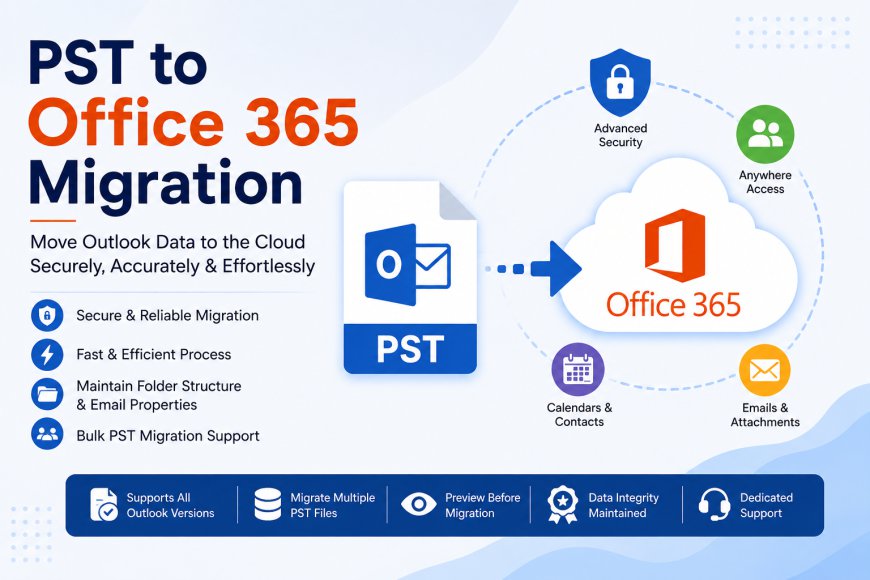
Microsoft 365 has become an important part of modern business communication. Many organizations that previously relied on Outlook for local email storage are now moving their archived mailbox data to the cloud. One of the most common requirements during this transition is PST to Office 365 migration.
PST files can contain years of valuable emails, contacts, calendars, attachments, and other Outlook information. Keeping this data only on local computers can make access and management difficult. Moving it to Microsoft 365 provides a more centralized environment and allows users to work with their information through cloud-based mailboxes.
For organizations planning to move their Outlook archives, understanding the available migration options can help create a smoother transition.
What Is a PST File?
PST stands for Personal Storage Table. It is a Microsoft Outlook data file used to store mailbox information locally. Users commonly create PST files when they archive old emails, export mailbox data, or maintain a backup of Outlook information.
A typical PST file may include:
- Email messages
- Attachments
- Contacts
- Calendar entries
- Tasks
- Notes
- Custom mailbox folders
Over time, employees can accumulate several PST files. When these archives are distributed across different computers or storage devices, managing them becomes increasingly difficult.
Why Move Outlook Data to Microsoft 365?
Cloud-based mailbox storage offers several advantages over maintaining independent PST archives.
Centralized Management
Instead of keeping email archives on individual computers, organizations can bring relevant information into Microsoft 365 mailboxes. This makes administration and data organization easier.
Convenient Access
Cloud-based email can be accessed through supported Microsoft applications and devices, reducing dependence on the computer where an archive was originally stored.
Improved Collaboration
Microsoft 365 works with applications such as Teams, SharePoint, and OneDrive. Keeping important communication data within the same ecosystem can support a more connected working environment.
Better Data Organization
Migrating selected historical information into the appropriate mailbox can make it easier for employees to find older conversations when they need them.
Reduced Reliance on Local Archives
Centralizing important email information can reduce the number of PST files that administrators need to track and maintain.
How Can You Import PST to Office 365?
There are several ways to transfer Outlook archives into Microsoft 365. The appropriate method depends on the number of files, migration requirements, technical resources, and organization size.
For smaller requirements, manual methods may be sufficient. Microsoft also provides administrative options for larger data transfers. However, these approaches can involve multiple configuration steps and may require familiarity with Microsoft 365 administration.
For organizations working with numerous PST files, dedicated migration software can provide a more structured workflow.
Using a Dedicated PST Migration Tool
The MailsDaddy PST to Office 365 Migration Tool is designed to help users transfer Outlook PST data into Microsoft 365 mailboxes.
More information about the software is available here:
https://www.mailsdaddy.com/pst-to-office-365-migration-tool/
The application provides a straightforward interface for adding PST files, examining mailbox data, selecting migration requirements, and transferring information to the target environment.
This can be particularly useful when an organization needs to process multiple archives rather than handling every PST file separately.
Important Features to Consider
When selecting software for an email migration project, several capabilities are worth considering.
Multiple File Processing
Organizations may have numerous PST archives. Support for processing multiple files can reduce repetitive manual work.
Selective Migration
Not every item in an archive may need to be transferred. Selective options allow users to focus on relevant folders and mailbox information.
Data Preview
Preview functionality can help users examine the source data before beginning the transfer.
Folder Structure Preservation
Maintaining the original organization of mailbox folders can make the migrated data easier to navigate after the process is complete.
Attachment Support
Business emails often contain important documents and files. A suitable migration solution should handle email attachments along with their associated messages.
Steps to Upload PST to Office 365
Although the exact workflow depends on the selected solution, the general process usually involves several stages.
1. Collect the PST files
Identify the Outlook archives that contain the data required for migration.
2. Review the source data
Check the folders and mailbox items before transferring them.
3. Add the files to the migration application
Load the required PST files into the selected software.
4. Configure the destination
Provide the necessary Microsoft 365 account or mailbox information.
5. Select the required data
Choose the folders or mailbox content that should be transferred.
6. Start the migration
Begin the process and monitor its progress until completion.
Things to Check Before Migration
Good preparation can help avoid unnecessary problems during a migration project.
First, create backup copies of important PST files. Next, prepare a list of users and determine which archive belongs to each account. It is also useful to check the available storage of the destination mailboxes.
Organizations handling a large number of files can perform a small test migration before processing the complete dataset. This provides an opportunity to identify configuration issues and verify that the expected data reaches the correct mailbox.
Why Use an Automated Approach?
Manual migration can work for limited requirements, but handling many archives individually may consume considerable time. An automated approach can reduce repetitive tasks and provide a consistent migration workflow.
A suitable solution can help administrators manage large collections of Outlook archives while reducing the amount of manual processing involved.
It is also important to remember that migration software should be selected according to the organization's requirements, Microsoft 365 configuration, mailbox structure, and data volume.
Final Thoughts
Moving historical Outlook information into Microsoft 365 can help organizations create a more accessible and manageable email environment. A carefully planned PST to Office 365 migration can reduce dependence on scattered local archives while bringing important communication data closer to users' everyday cloud workflows.
Organizations can choose between native Microsoft methods and dedicated software depending on their technical requirements and migration size. For users who need to upload PST to Office 365 across multiple accounts, a specialized solution such as the MailsDaddy PST to Office 365 Migration Tool can simplify the overall workflow.
The key to a successful project is not simply transferring files. Proper planning, data verification, account mapping, testing, and post-migration validation are equally important for ensuring that valuable Outlook information remains organized and accessible.