How to Take a Screenshot on Windows Using the Print Screen Key
Learn how to take a screenshot on Windows using the Print Screen key with simple step-by-step instructions for beginners and advanced users.
 stepthensmith
How to Take a Screenshot on Windows Using the Print Screen Key
Taking a screenshot on Windows shouldn’t feel complicated — yet many users still struggle with where their image went, why nothing “popped up,” or how to capture only part of the screen.
If you’ve ever pressed Print Screen (PrtScn) and wondered what just happened, this guide will walk you through it clearly and practically.
Whether you're a student, professional, remote worker, or casual user, this step-by-step tutorial covers everything you need to know about using the Print Screen key on Windows 10 and Windows 11 — without unnecessary tech jargon
What Is the Print Screen (PrtScn) Key?
The Print Screen key (often labeled PrtScn, PrtSc, or PrtScn SysRq) is a built-in Windows keyboard key that captures a screenshot of your screen.
On most keyboards, you'll find it:
-
In the top-right corner
-
Near the F12 key
-
Sometimes combined with other functions on laptops
It allows you to quickly capture:
-
The entire screen
-
A single active window
-
Or automatically save a screenshot to your computer
You May Also Read: How to Take a Screenshot on Windows
Methods to Take a Screenshot Using the Print Screen Key
Below are the most effective and commonly used methods on Windows.
1. Press Print Screen (PrtScn) – Capture Entire Screen
Best for: Quick full-screen captures
Steps:
-
Press the PrtScn key once.
-
Nothing will appear to happen.
-
Open Paint, Word, or any image editor.
-
Press Ctrl + V to paste.
-
Save the image.
What happens?
The screenshot is copied to your clipboard — not automatically saved.
This method works on:
-
Windows 10
-
Windows 11
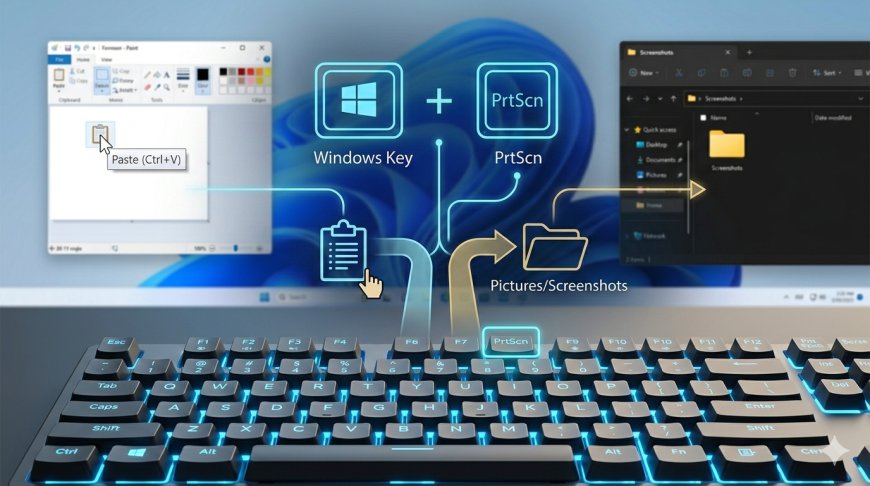
2. Press Windows + Print Screen – Auto Save Screenshot
Best for: Automatic saving
Steps:
-
Press Windows key + PrtScn together.
-
Your screen will briefly dim.
-
The screenshot is automatically saved.
Where is it saved?
Go to:
This PC → Pictures → Screenshots
File format: PNG
File name example: Screenshot (1).png
This is the easiest way to take and save screenshots instantly.
3. Press Alt + Print Screen – Capture Active Window Only
Best for: Capturing one window (not entire screen)
Steps:
-
Click on the window you want to capture.
-
Press Alt + PrtScn.
-
Open Paint or another editor.
-
Press Ctrl + V to paste.
-
Save the file.
This avoids cropping later because it captures only the selected window.
4. On Laptops: Use Fn + Print Screen
Many laptops require the Function (Fn) key.
If pressing PrtScn alone doesn’t work:
Try:
-
Fn + PrtScn
-
Or Fn + Windows + PrtScn
Laptop brands may vary slightly, but this combination works for most devices.
Where Do Screenshots Go on Windows?
It depends on the method used:
|
Method |
Location |
|
PrtScn only |
Clipboard (must paste manually) |
|
Windows + PrtScn |
Pictures → Screenshots folder |
|
Alt + PrtScn |
Clipboard (must paste manually) |
If you can’t find your screenshot, check:
-
Clipboard history (Press Windows + V)
-
Pictures folder
-
Recently opened files
Why Isn’t Print Screen Working?
If your screenshot shortcut isn’t working, here are common reasons:
1. Function Key Required
Use Fn + PrtScn.
2. OneDrive Screenshot Setting Enabled
Sometimes OneDrive overrides default saving behavior.
Check:
-
OneDrive Settings → Sync and Backup → Screenshots
3. Keyboard Issue
Test your PrtScn key in another app.
4. Clipboard Not Pasting
Make sure you're pressing Ctrl + V in an image editor.
Bonus: Cropping After Taking Screenshot
If you captured the entire screen but only need part of it:
-
Paste into Paint
-
Use the Select tool
-
Crop the area
-
Save
For more advanced screenshot editing, Windows also includes the Snipping Tool, but the Print Screen key remains the fastest built-in method.
When Should You Use Print Screen?
The Print Screen key is ideal when you need to:
-
Capture error messages
-
Save online receipts
-
Share technical issues
-
Keep visual records
-
Create tutorials
-
Save chat conversations
It’s simple, fast, and requires no additional software.
Frequently Asked Questions
Does Print Screen work on Windows 11?
Yes. All methods listed work on both Windows 10 and Windows 11.
What format are screenshots saved in?
PNG by default when using Windows + PrtScn.
Can I change the save location?
Yes, by moving the Screenshots folder inside the Pictures directory.
Final Thoughts
Learning how to take a screenshot on Windows using the Print Screen key is a small but powerful digital skill.
Once you understand:
-
Clipboard vs auto-save
-
Keyboard combinations
-
Screenshot locations
It becomes second nature.
If you use Windows regularly, mastering these screenshot shortcuts will save you time every single week.
Simple. Fast. Efficient.