Ultimate Guide to Setting Up Your PAX Q80 Terminal
 maddysmith1
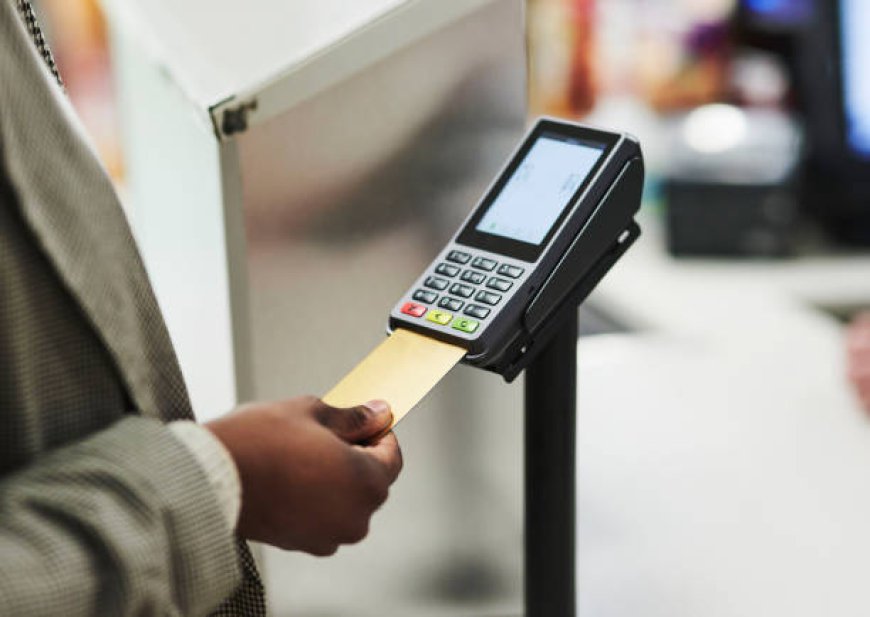
Running a business smoothly often depends on having the right tools for everyday operations. One of the most important tools is a reliable payment terminal. The PAX Q80 terminal is designed to make accepting payments fast, secure, and straightforward. Whether your business is a small shop, café, or larger retail store, having a terminal that works efficiently can save time and make transactions easier for both staff and customers.
This guide will take you through every step of setting up your PAX Q80 terminal, from unboxing to completing your first payment. By following these steps, you can ensure your terminal is ready for everyday use, helping your business run more efficiently while providing a seamless experience for your customers. For more details about the product, you can check the Pax Q80 here.
Unboxing Your Terminal
Before you start, carefully unpack the terminal and check that you have all the necessary components. A standard package usually includes the terminal itself, a power adapter, necessary cables, a thermal paper roll, and a quick start guide. Make sure everything is included and undamaged. Keep the user manual nearby as it can be useful for troubleshooting later.
Choosing the Right Location
The location of your terminal is crucial for smooth operation. Make sure it is accessible to staff and customers, has a strong network connection, and is near a power source. Also, consider placing it at a comfortable height and angle to make customer interaction easier. A well-placed terminal reduces errors and makes the payment process faster.
Connecting Your Terminal to Power
Once you have a suitable spot, connect your PAX Q80 terminal to power. Plug the power adapter into the terminal and then into a reliable outlet. Turn on the terminal using the power button. The device will boot up and display the home screen within a few seconds.
Setting Up Network Connection
Your terminal can connect to the payment network via Ethernet, Wi-Fi, or 3G (if supported).
-
For Ethernet, plug one end of the cable into the terminal and the other into your router or network switch. The terminal should connect automatically.
-
For Wi-Fi, go to Settings → Network → Wi-Fi, select your network, and enter the password. The terminal will confirm once it is successfully connected.
A stable network is essential for uninterrupted transactions.
Loading Thermal Paper
If your terminal will print receipts, you need to load the paper roll correctly. Open the compartment, place the roll with the paper feeding from the bottom, pull out a small length of paper, and close the compartment. Press the feed button to make sure the paper moves smoothly. Using high-quality thermal paper helps avoid jams and ensures clear printing.
Configuring Terminal Settings
Now, configure the terminal according to your business needs. Start by setting your preferred language under Settings → System → Language. Set the correct date and time to ensure accurate transaction records. You can also adjust receipt settings, including header, footer, or logo details. These settings ensure smooth operation and consistent records.
Installing Payment Applications
Depending on your payment processor, you may need to install specific applications. These could include EMV chip card processing, contactless payment options, or loyalty programs. To install:
-
Go to the App Management menu.
-
Select the required application.
-
Follow on-screen instructions to download and install it.
Before adding apps, check for the latest software updates to improve performance and security.
Activating Your Merchant Account
To process payments, link your terminal to your merchant account. Enter your merchant ID, terminal ID, and any other credentials under Settings → Merchant Setup. Follow instructions from your payment provider to complete the setup. Once activated, your terminal is ready for live transactions.
Performing a Test Transaction
Before accepting real payments, do a test transaction to ensure everything works. Use a test card provided by your processor, enter a small amount, and complete the payment. Check the receipt for accuracy. This step confirms that the terminal, network, and merchant account are all functioning correctly.
Security Settings
Keeping your transactions secure is very important. Enable features like PIN encryption, update the terminal firmware regularly, and set user permissions to prevent unauthorized access. This ensures that sensitive customer information is protected and helps you stay compliant with payment security standards.
Staff Training
Make sure your staff knows how to operate the terminal efficiently. Demonstrate how to process card payments, print receipts, and troubleshoot simple problems like paper jams or network issues. Well-trained staff can handle transactions quickly, providing a better experience for customers.
Regular Maintenance
To keep your terminal working smoothly, perform regular maintenance. Clean the screen and keypad with a soft cloth, replace paper rolls when needed, and check for software updates. Troubleshoot minor issues like connectivity problems or slow performance promptly to prevent disruptions.
Advanced Features
The PAX Q80 terminal also includes several features that can make your business operations easier. You can enable split payments, tips, or gratuities. Reporting tools help track daily, weekly, or monthly transactions for accounting purposes. Custom receipt options, including logos or promotions, can enhance customer engagement and loyalty.
Troubleshooting Common Problems
Even with proper setup, occasional issues can occur. Some common problems include:
-
Network issues: Restart the terminal or router, and check connections.
-
Paper jams: Remove stuck paper and reload correctly.
-
Payment declines: Verify that the merchant account is active.
-
Slow performance: Check for software updates and restart the device.
Most issues can be resolved quickly without professional support.
Conclusion
Setting up the PAX Q80 terminal is straightforward when you follow a step-by-step approach. By carefully unpacking the device, connecting it to power and a network, loading paper, installing apps, and activating your merchant account, you can have your terminal ready for secure, efficient payments in no time.
Training your staff and performing regular maintenance ensures smooth day-to-day operation. Leveraging advanced features can improve customer experience, streamline transactions, and make your business more efficient. With proper setup, your PAX Q80 terminal can become an essential tool for running a successful business.