

How to Clear Cache in B1g Player on Android and Smart TV
How to Clear Cache in B1g Player on Android and Smart TV

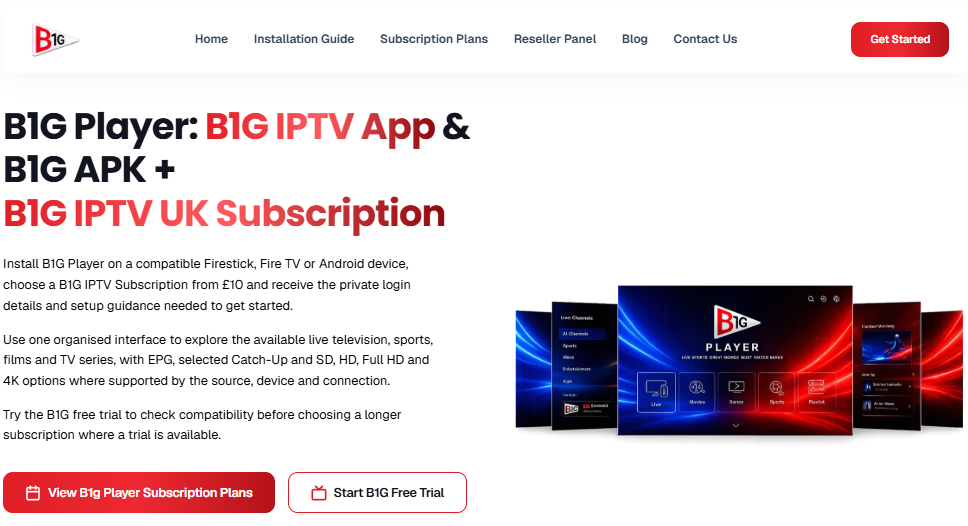
If B1g Player is running slowly, freezing during playback, or taking too long to load channels, clearing its cache may help resolve the problem. Like many Android applications, streaming players store temporary files to speed up everyday operations. However, these files can occasionally become outdated or corrupted, causing unexpected performance issues.
Whether you use B1g apk, bigtv, or big player on an Android phone, Android TV, or Fire TV Stick, clearing the cache is a simple troubleshooting method. This guide explains how to remove temporary files safely without unnecessarily deleting your account information.
What Is B1g Player Cache?
B1g Player cache refers to temporary application data stored on your device. Android applications use cached files to reduce repeated loading and improve responsiveness.
Depending on the application, cached information may include images, temporary interface resources, and other frequently accessed data.
Over time, some temporary files may become outdated or cause software problems.
Clearing the cache removes these temporary files and allows the application to create fresh ones when needed.
However, cache clearing does not repair every streaming issue. Internet problems, subscription errors, and unavailable content servers require different solutions.
How to Clear B1g Player Cache on Android
Clearing the B1g Player cache on an Android smartphone is usually straightforward.
Open your phone's Settings application and navigate to Apps. Depending on your device, you may need to select See all apps to display the complete application list.
Find B1g Player and open its application information screen.
Select Storage & cache or Storage, depending on your Android version and manufacturer.
Tap Clear cache to remove temporary application files.
After clearing the cache, close Settings and reopen B1g Player.
The application may take slightly longer to load initially because it needs to recreate certain temporary resources.
How to Clear B1g APK Cache on Android TV
If you installed B1g apk on Android TV, you can usually clear its temporary files through the television's system settings.
Open Settings from the Android TV home screen and navigate to Apps.
Find the installed B1g Player application. On some televisions, you may need to select See all apps.
Open the application information screen and choose Clear cache if the option is available.
Once the process finishes, restart the player and check whether the original problem continues.
Menu names can vary between Android TV and Google TV devices, so follow the equivalent options shown on your television.
Clear Big Player Cache on Fire TV Stick
Users running Big Player on compatible Fire TV Stick devices can also manage application cache through Fire TV settings.
Open Settings from the Fire TV home screen and select Applications.
Navigate to Manage Installed Applications and choose the installed player.
Select Clear Cache to delete temporary files associated with that application.
Return to the home screen and launch the player again.
Avoid choosing Clear Data unless you specifically need to reset the application, because that option may remove saved accounts and preferences.
BigTV Cache Problems and Streaming Performance
Users searching for BigTV may be referring to different IPTV applications or services. Although some streaming players have similar names, their settings and features may not be identical.
If a BigTV-related application freezes or displays outdated content, clearing its cache may help.
However, persistent buffering usually requires additional troubleshooting.
Check whether other streaming applications work correctly on the same internet connection.
If several applications experience similar problems, your Wi-Fi network or internet service may be responsible.
If only one IPTV application has problems, investigate its compatibility, account settings, or streaming provider.
Does Clearing Cache Affect B1g Player Subscription?
Clearing temporary files should not cancel a B1g Player subscription managed by an independent IPTV provider.
Your subscription is generally associated with your service account rather than your device's temporary cache.
However, clearing application storage is different from clearing cache.
Selecting Clear Storage or Clear Data may erase saved login credentials, downloaded application data, and customized settings.
Before resetting the player, securely save your account information.
If you cannot access content after clearing the cache, verify your internet connection and subscription status before making additional changes.
What to Do if B1g Player Still Does Not Work
If clearing the cache does not solve the problem, restart your Android device or television.
Next, check whether a compatible application update is available from the verified publisher.
You should also confirm that your internet connection is stable and your subscription remains active.
If the application continues crashing, contact the software publisher or your streaming provider for assistance.
Reinstalling the application should be considered only after simpler solutions fail, because uninstalling may remove local settings and account information.
Tips to Prevent Future Cache Problems
Keeping your Android device updated can help maintain application compatibility.
Make sure your device has sufficient free storage and avoid installing modified APK files from unknown sources.
Restart the application when it becomes unresponsive, and investigate network problems before repeatedly clearing cache files.
There is no need to clear the cache every day. Doing so unnecessarily can temporarily increase loading times as the application rebuilds its temporary files.
Frequently Asked Questions
Is clearing B1g Player cache safe?
Yes. Clearing an application's cache generally removes temporary files without deleting its main settings or subscription account.
Will clearing B1g APK cache delete my channels?
Clearing temporary cache normally does not delete a provider-managed subscription or channel entitlement. However, some temporary information may need to reload.
Can clearing cache fix B1g Player buffering?
It may help when corrupted temporary files contribute to the problem. Network congestion and provider-side issues require separate troubleshooting.
How often should I clear Big Player cache?
Clear the cache when troubleshooting application problems rather than following a fixed daily schedule.
Does clearing BigTV cache remove login information?
Clearing cache normally preserves login details. Clearing application data or storage may remove them.
Conclusion
Clearing the B1g Player cache is a useful first step when troubleshooting freezing, slow loading, and certain application errors.
Whether you use B1g apk on Android, big player on Fire TV Stick, or a bigtv application, system settings usually provide an option to remove temporary files.
Remember that clearing cache and clearing application data are different actions. Always select the correct option to avoid losing important settings.













Comments (0)