

A Complete Guide to Setting Up an Order Counter POS System

Introduction
A smooth checkout process helps businesses serve customers faster and manage daily sales more easily. Restaurants, cafes, retail stores, and other businesses that accept payments at a counter need a reliable way to handle orders and transactions.
An order counter POS system brings order entry, payment processing, and sales records together in one place. Depending on the system, it may also support inventory tracking, receipts, and sales reports.
Setting up an order counter pos correctly helps employees avoid mistakes and complete transactions with confidence. With guidance from Florida Payments, business owners can explore suitable payment solutions and prepare their systems for daily use.
What Is an Order Counter POS System?
An order counter POS system is a tool that helps businesses enter customer orders, calculate totals, accept payments, and record sales. It combines order management and payment processing to make counter operations easier.
The available features depend on the software, equipment, and business requirements. Restaurants may need menu management and order routing, while retail stores may focus on product searches and inventory records.
A properly configured system helps employees complete sales efficiently and gives business owners a clearer view of daily transactions.
Why Is Proper POS Setup Important?
Correct setup helps ensure that product prices, payment options, and business settings work as expected. It also reduces the chance of order entry mistakes, payment delays, and incorrect sales records.
Before installation, business owners should consider how orders are handled, which payment methods customers use, and what features employees need. Planning ahead makes it easier to choose suitable equipment and prepare the system without unnecessary changes later.
Step 1: Understand Your Business Needs
Start by reviewing how your business manages orders and payments. A restaurant may need menu options and special requests, while a retail store may require barcode scanning and stock tracking.
Consider the number of daily transactions, the number of employees using the system, and whether you need multiple checkout stations. You should also decide whether digital receipts, sales reports, or inventory tools are important for your operations.
These details will help you choose an order counter POS that supports your daily work without adding unnecessary features.
Step 2: Select the Right Equipment
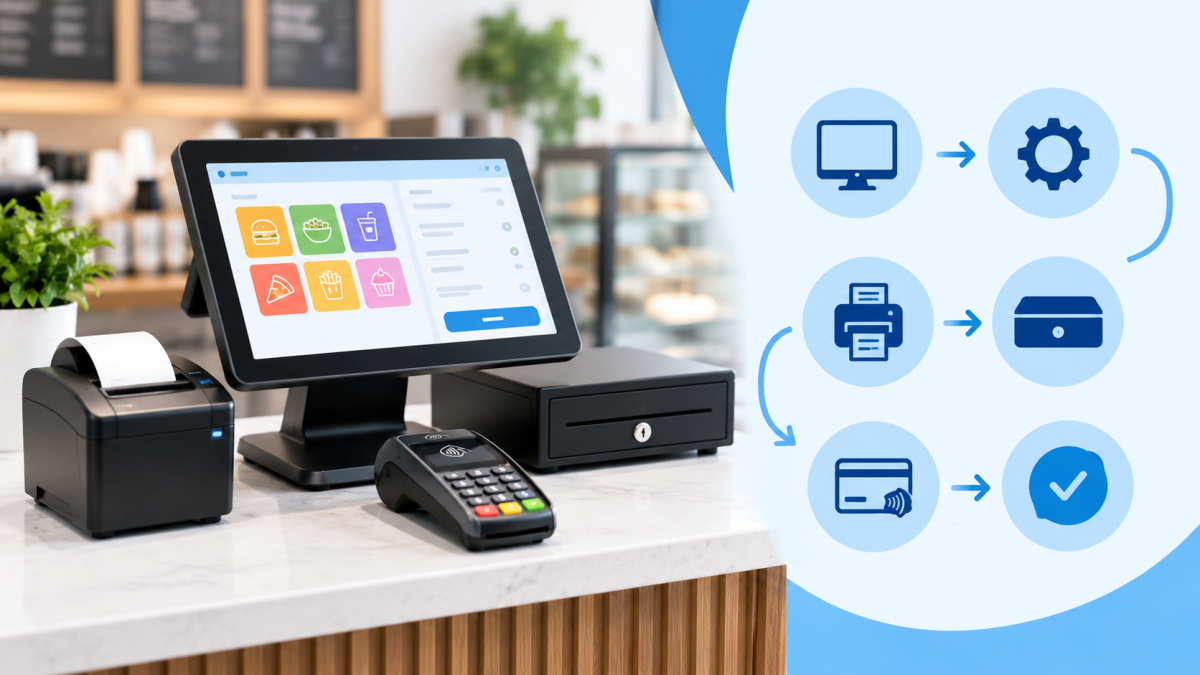
The equipment required depends on the selected system. A typical setup may include a touchscreen terminal, compatible payment device, and receipt printer. Some businesses may also need a cash drawer, barcode scanner, or customer display.
Before buying equipment, confirm that all components work with your chosen software and payment processing service. Check the power requirements, available connections, and supported payment devices.
Place the equipment on a stable counter where employees can enter orders comfortably and customers can complete payments easily. Keep cables organized and make sure the screen is easy to read.
Step 3: Install and Configure the Software
Install or activate the POS software by following the provider's instructions. Depending on the system, the software may run directly on the terminal or use a cloud-based platform.
Complete the required business account settings and apply approved software updates. Configure important details such as business information, receipt preferences, tax settings, and payment options.
Review each setting carefully. Incorrect prices or business details can affect checkout totals and sales reports. If you are unsure about a setting, contact the provider before making changes.
Step 4: Add Products and Menu Items
The POS system needs accurate product or service information before it can be used for regular sales. Enter the names, prices, categories, and other details required for each item.
Restaurants may need menu choices, sizes, and additional options. Retail stores may need product codes and stock information.
Check the information before saving it. Incorrect prices and duplicate entries can create confusion at checkout. If the system supports inventory tracking, enter the correct starting stock levels and organize products into clear categories.
Step 5: Connect Payment Processing
The POS software and payment terminal must work together to process transactions correctly. Follow the provider's instructions to connect the payment device and activate the required services.
Depending on the equipment and account setup, the system may support chip cards, contactless payments, and other payment methods. Confirm which options are available before accepting customer payments.
Check that the terminal communicates with the POS software and that approved transactions appear in the correct records. If activation requires additional details, ask your payment provider for assistance.
Step 6: Set Up Employee Accounts
Each employee should have access to the functions needed for their job. A cashier may need to enter orders and accept payments, while a manager may also need permission to approve refunds or review sales reports.
Create individual accounts when supported instead of sharing login details. Use strong passwords and remove access when an employee leaves or no longer needs the system.
These steps help protect business records and make it easier to track important actions.
Step 7: Test the System Before Opening
Testing helps identify problems before customers begin using the system. Check product prices, order totals, payment responses, receipt details, and sales records.
|
Test Area |
What to Check |
Expected Result |
|
Product details |
Names and prices |
Information appears correctly |
|
Order entry |
Adding or removing items |
Totals update correctly |
|
Payment processing |
Supported payment methods |
Correct transaction response |
|
Receipts |
Printed or digital details |
Information matches the sale |
|
Employee accounts |
Access permissions |
Staff can use approved features |
|
Sales reports |
Recorded transactions |
Sales data is accurate |
If you find an error, correct it before using the system for daily sales. Follow the provider's approved testing process and avoid creating unnecessary live transactions.
Step 8: Train Employees to Use the POS
Employees need to understand how the system works before handling customer orders. Training should cover order entry, payment acceptance, receipts, refunds, and common error messages.
-
Demonstrate the checkout process and allow employees to practise common tasks.
-
Explain how to handle declined payments and report technical problems.
-
Teach staff to protect login details and follow approved refund procedures.
-
Show employees how to contact support when an issue cannot be resolved.
Regular training helps staff feel more confident and reduces mistakes during busy periods.
Common POS Setup Mistakes to Avoid
Choosing equipment without checking compatibility can lead to installation problems. Entering incorrect product details or skipping payment tests may also cause errors during checkout.
Businesses should avoid sharing passwords, delaying approved software updates, and using poorly protected networks. Review settings regularly and update product information when business needs change.
How Florida Payments Can Help
Setting up an order counter POS system involves choosing compatible equipment, configuring software, and connecting payment processing services. Business owners may need guidance to understand available payment options and the requirements for activating their systems.
Florida Payments can help businesses explore payment processing solutions and identify important questions before choosing a setup. Discuss compatibility, payment methods, support options, and the features needed for your business.
Understanding these details can help you prepare your POS system and reduce avoidable setup problems.
Frequently Asked Questions
1. What equipment is needed for an order counter POS system?
A typical setup includes a POS terminal, compatible payment device, and receipt printer. Depending on your business, you may also need a cash drawer, barcode scanner, or customer display. Always check equipment compatibility before purchasing.
2. How long does it take to set up a POS system?
Setup time depends on the equipment, software, product list, and payment processing requirements. Simple systems may take less time, while larger businesses may need extra configuration, transaction testing, and employee training before opening.
3. Can an order counter POS accept different payment methods?
Yes, when the equipment and payment processing arrangement support them. Available options may include chip cards and contactless payments. Confirm which payment methods are enabled for your account before accepting customer transactions.
4. Why should I test my POS system before using it?
Testing helps identify incorrect prices, payment connection problems, receipt errors, and account permission issues. It also gives employees a chance to practise common tasks and understand how to respond to basic problems before serving customers.
5. How can I keep my POS system secure?
Use strong passwords, assign suitable employee permissions, install approved updates, and protect the network connected to your payment equipment. Inspect devices regularly and follow your payment provider's instructions for reporting suspicious activity.
Conclusion
Setting up an order counter POS system involves planning, selecting compatible equipment, configuring software, and connecting payment processing. Accurate product information, employee permissions, and transaction testing help prepare the system for everyday use.
Employee training and regular maintenance are also important for reducing errors and keeping checkout operations organized. With suitable guidance from Florida Payments, businesses can explore payment options that meet their needs and provide customers with a smoother checkout experience.

















Comments (0)